Definition
A theme defines the overall look of your website. It consists of global styles (e.g. colors, typography, spacing) and element styles (e.g. button, badge, card, input). By editing a single theme, you can change the appearance of your entire website, while making sure everything remains consistent.
Edit Theme
To edit a theme, navigate to the Themes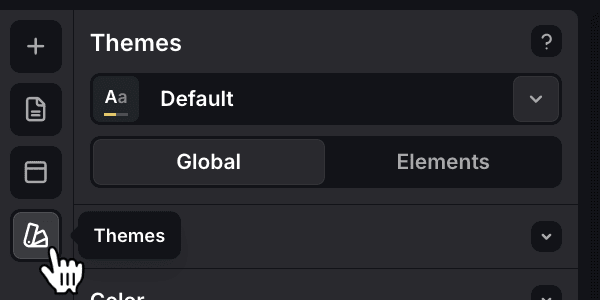 pane in the sidebar. At the very top of the tab, you can select the Theme
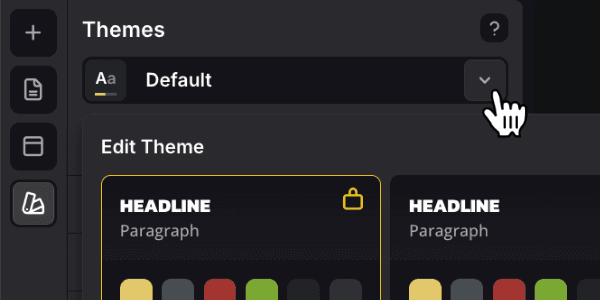 you would like to edit.
Global Styles
Global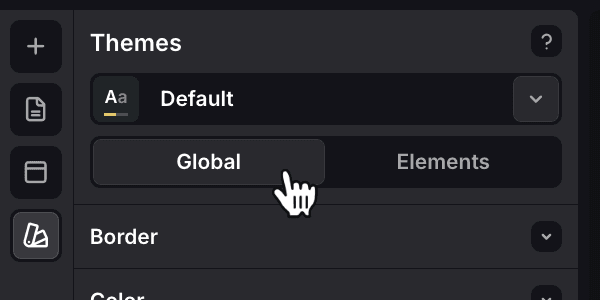 styles are general settings, and can be compared to CSS variables. Changing a global style will affect all elements using said style. You can configure:
- Border
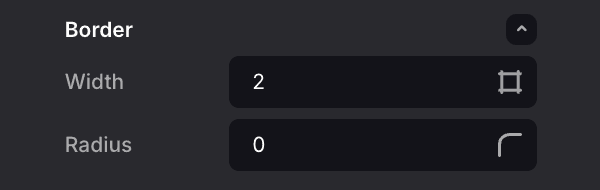 Set a global border radius and border width.
 - Color
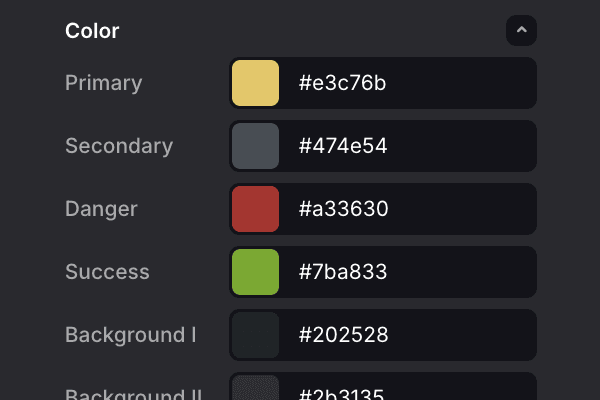 Define a color palette for your website. Pick colors from this palette when editing element styles.
 - Spacing
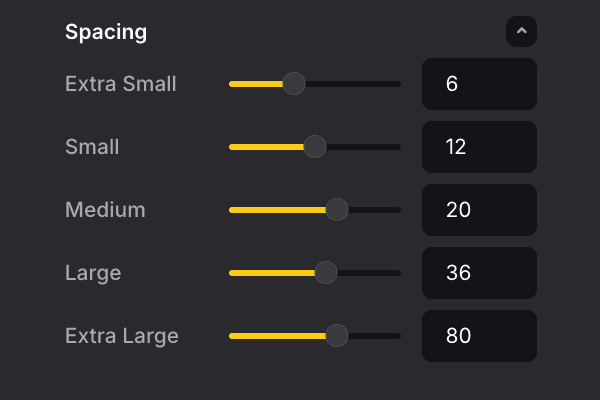 Define a spacing scale that can be used throughout your website. This ensures consistent spacing between different elements.
 - Typography
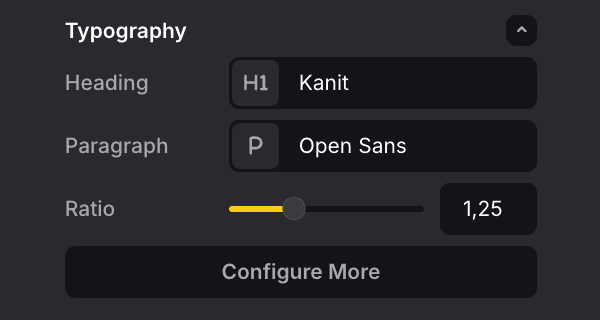 Set global font families, sizes, weights, and line heights for headings, paragraphs and links.
Element Styles
Element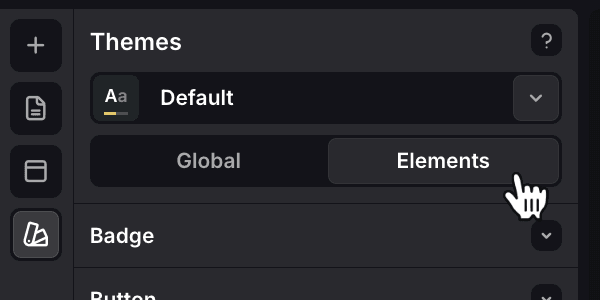 styles define the appearance of specific UI components, such as buttons, badges, cards, and inputs. For each element, you can customize various properties like background color, text color, border style, padding, and more. When editing these styles, you can choose to use the global styles you defined earlier, ensuring consistency across your site.
- Badge
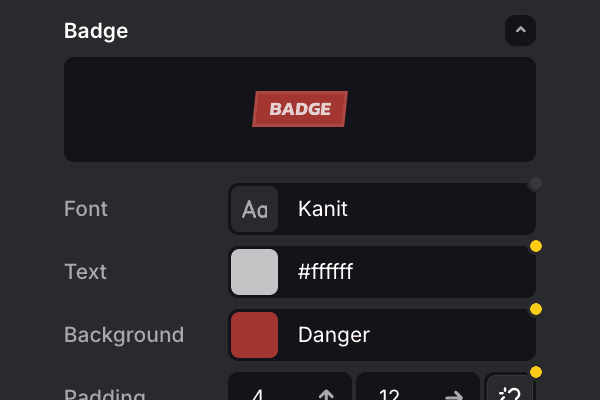 Small piece of text that is used to highlight new or important information.
 - Button
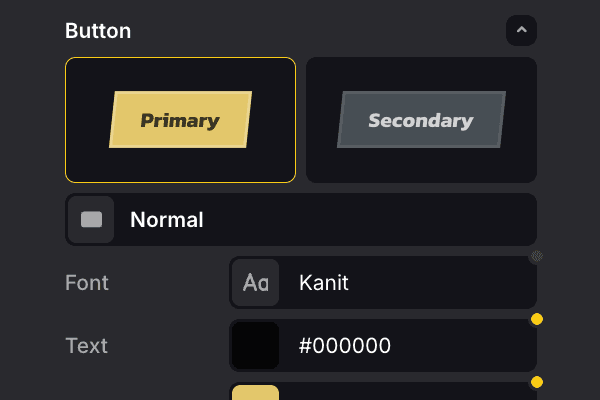 Clickable element that is used to trigger an action or navigate to another page.
 - Card
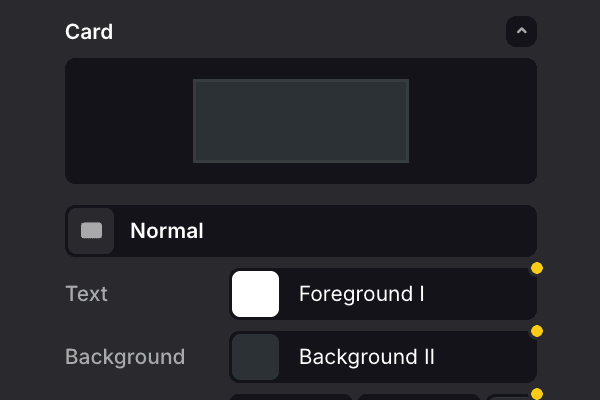 Container that is used to group related information together.
 - Input
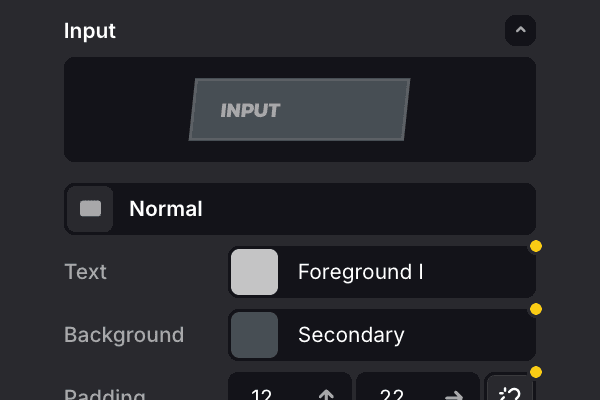 Field that is used to collect user input.
If you are familiar with CSS, you will feel right at home here. You can edit most of the CSS properties. Properties that are marked with a yellow dot are active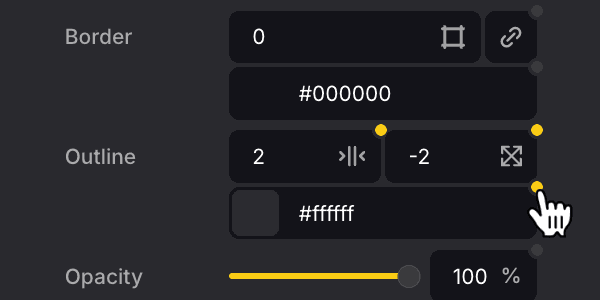 . Properties that are not marked with a dot are using the default value. By clicking on the dot, you can reset the property to its default (unused) value.
Some elements have different states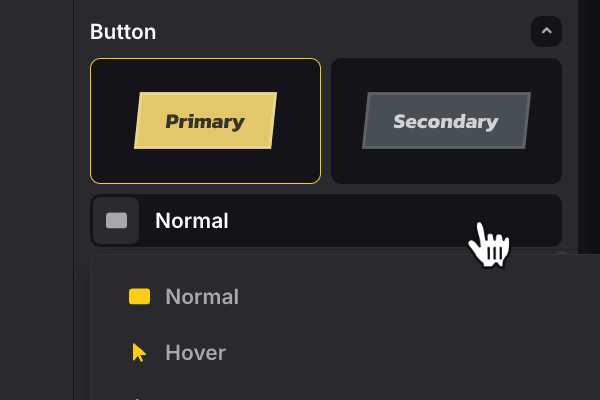 . For instance, a button has a normal state, but also a hover state (when the user hovers their mouse over the button) and an active state (when the button is being clicked). You can switch between those states and edit the properties for each state individually.
Create Theme
It is possible to create multiple themes and experiment with different looks. To duplicate a theme, click the dropdown icon next to the theme name, at the very top of the Themes tab. Select the theme you would like to duplicate, and press the Duplicate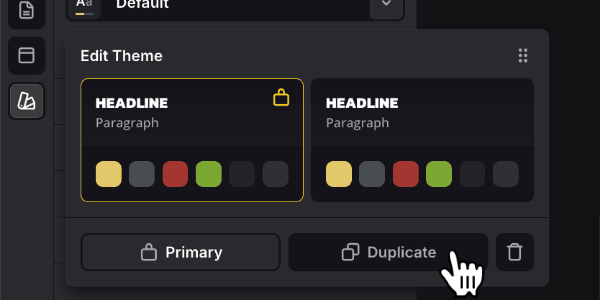 button.
Projects may have different themes, but only one theme can be the primary. The primary theme will be applied to all fragments, unless a fragment has been assigned a different theme through its settings.