Definition
Fragments are reusable components that can be added to pages or templates. Some fragments act as section (i.e. they can be added on a page or template directly), while other fragments are children of those sections (i.e. they cannot be added directly but have to exist within another fragment).
Add Fragments
In order to insert or add a fragment to a page or template, open the Insert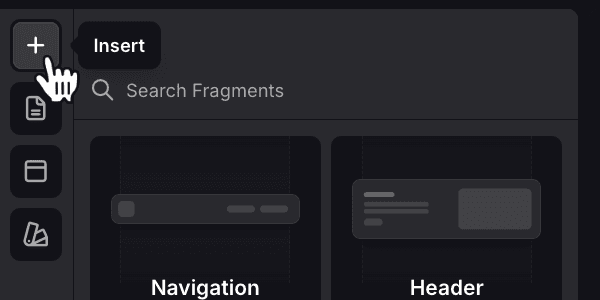 pane from the sidebar. A list of available (section) fragments will appear. In case you have plugins installed, you may see additional fragments provided by those plugins.
You can use the search bar to quickly find a specific fragment. Once you have found the fragment you would like to add, simply drag and drop it into the main area of the editor. You can also click the fragment to add it at the bottom of the page/template.
Edit Fragments
After adding a fragment, it is time to make it yours! By clicking on the fragment, you can access its settings and customize its content, appearance, and behavior to fit your needs.
Fragment Layouts
Fragmentor was built to make things as easy as possible. Each fragment has a number of different layouts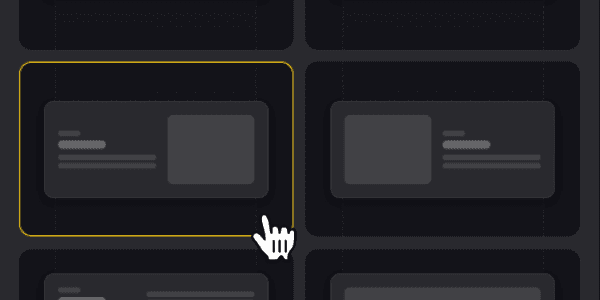 . You can switch between these layouts to change the structure and appearance of the fragment without losing any of your content. This feature allows you to experiment without having to redo all the work!
Simply click a fragment to select it, then watch the sidebar change to show the available fragment options. Among those options, you should see a list of layout thumbnails. Click any of those thumbnails to change the current layout.
Fragment Properties
Fragments consist of properties that can be edited. These properties will either show up in the sidebar (Beginner mode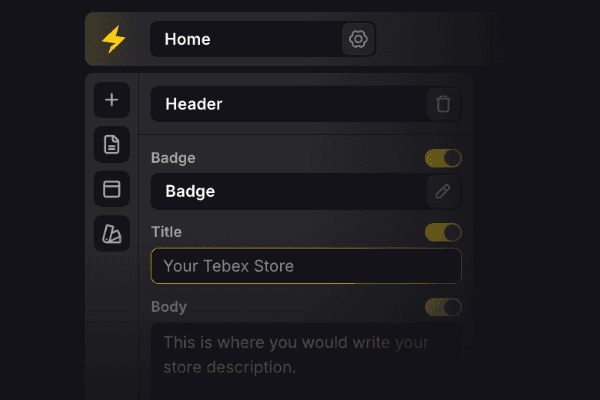 ) or have to be selected from the preview (Advanced mode
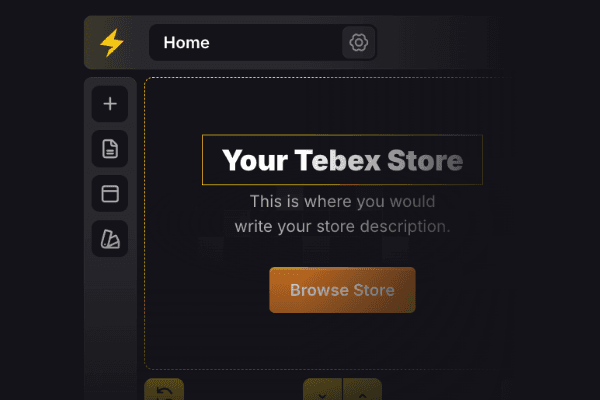 ). Below is a list of all available properties.
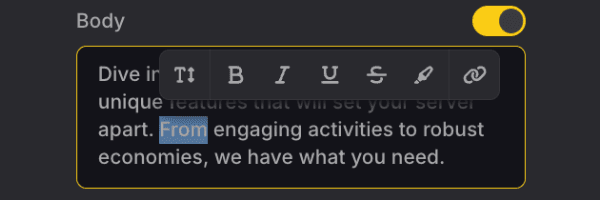
- TextBeginner mode
 Advanced mode
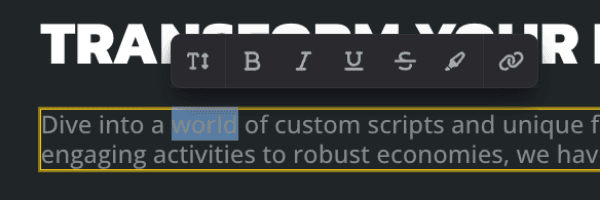 Edit text content (e.g. paragraphs, headers). Some fields allow for rich text editing, while others require plain text.
 - NumberBeginner mode
 Advanced mode
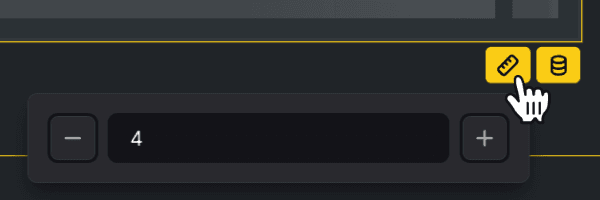 Edit numerical values (e.g. number of columns, rating).
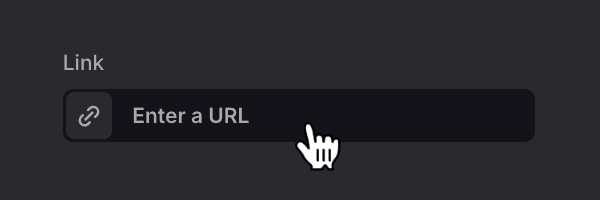
 - LinkBeginner mode
 Advanced mode
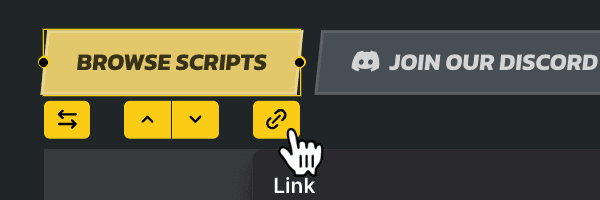 Edit hyperlinks to other pages or external websites.
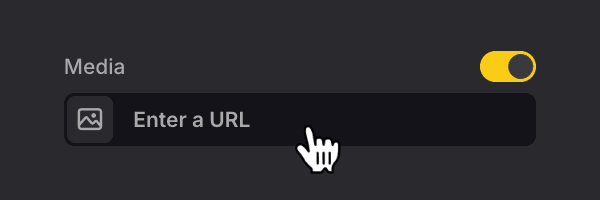
 - MediaBeginner mode
 Advanced mode
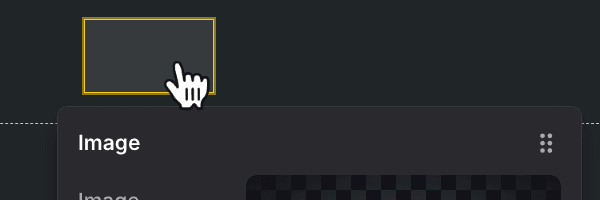 Add or change images/videos within the fragment. Images can be uploaded, while videos require a YouTube link. Inside the editor you have a number of other options to modify the media such as setting its aspect ratio, position and opacity.
 - IconBeginner mode
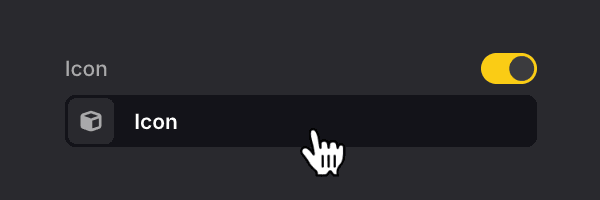 Advanced mode
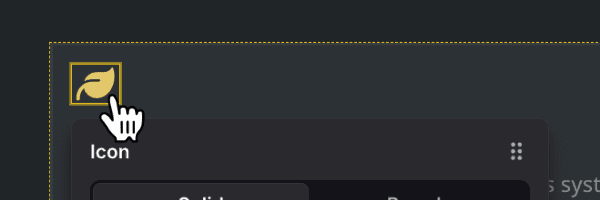 Edit icons by picking from the FontAwesome library.
 - Date TimeBeginner mode
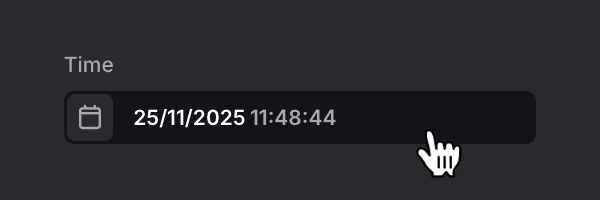 Advanced mode
 Pick a date and time using a calendar picker.
 - FragmentBeginner mode
 Advanced mode
 Modify nested fragments. Some nested fragments can be replacedBeginner mode
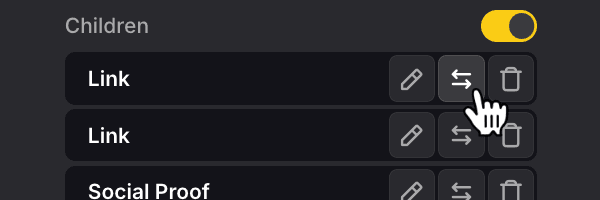 Advanced mode
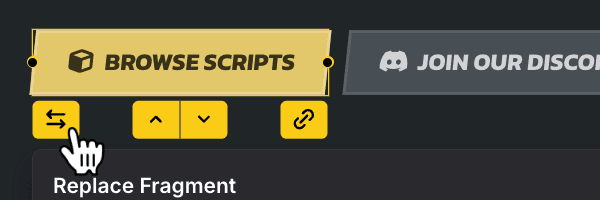 with other fragments.
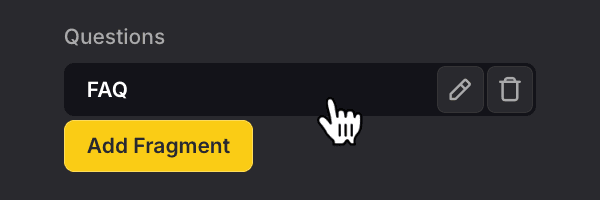
 - Fragment ListBeginner mode
 Advanced mode
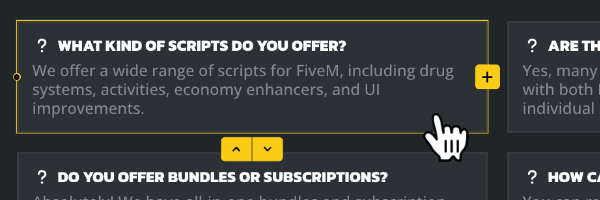 Add, remove or reorder a set of nested fragments within a list structure.
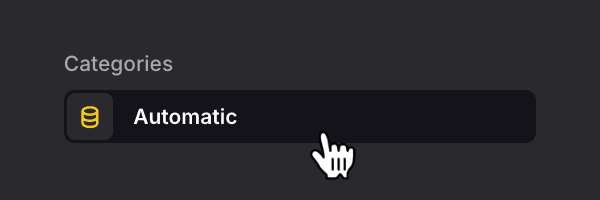
 - DataBeginner mode
 Advanced mode
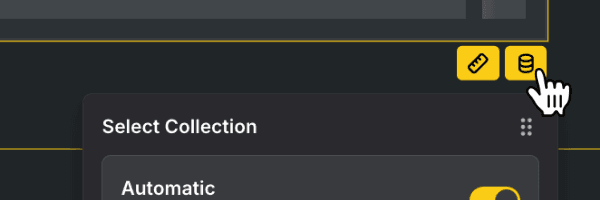 Bind dynamic data sources to your fragment.
Delete Fragments
To delete a fragment, you have to select it first by clicking on it from the preview. Once selected, the you can click the Delete button at the top of the sidebar next to the fragment's name.
Recap
We covered the basics of fragments: how to add, edit and delete them.