Definition
Templates are a powerful way to create reusable page structures. They allow you to define a layout and set of fragments that can be applied to multiple pages, ensuring consistency across your site and saving time when creating new pages.
Fragments that are part of a template are synchronized across pages using that template. This means that if you update a fragment in the template, all pages using that template will automatically reflect those changes.
Create Template
To create a new template, navigate to the Templates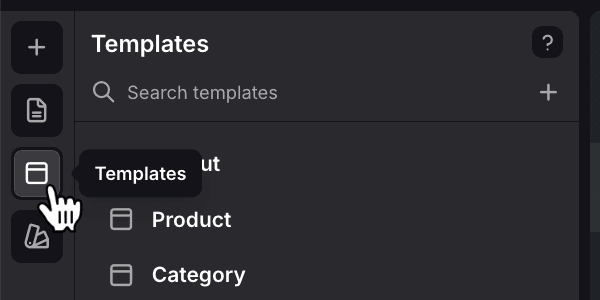 pane and click the Create Template
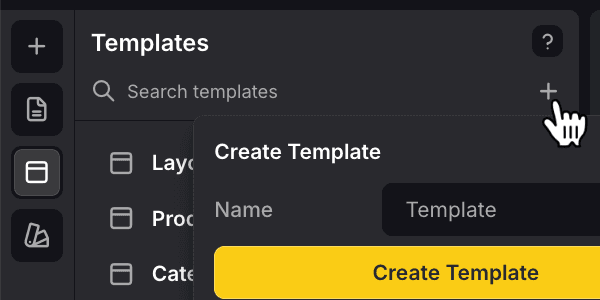 button. Enter an appropriate name for your template and submit. It really is as simple as that!
Edit Template
Select any of the templates you have created to start editing. When a template is selected, you will notice a Placeholder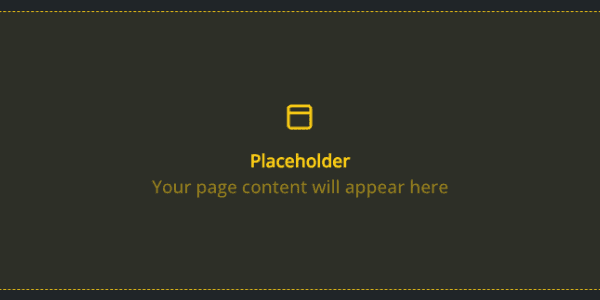 box in the center of the canvas. This placeholder indicates where the actual page content will be rendered. Remember, templates wrap around pages.
You can add fragments above the placeholder, or below it. Fragments above the placeholder will render above the page content, and fragments below the placeholder will render below the page content.
It is important to note that any fragments you add to a template are fixed and will be rendered on every page to which this template is assigned. Any changes you make to this template will affect all pages using it.
Assign Template to Page
To see your new template in action, you have to assign it to a page. You can assign a template to a page by editing the Page Settings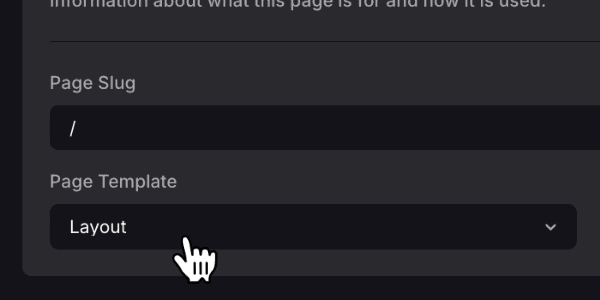 of said page. One template can be used across several pages, allowing you to sync certain content (e.g. navigation, footer) across those pages.
It is strongly recommended to create a template for CMS pages. For instance, Tebex product pages may all share the same layout. That way, you do not have to create each product page from scratch. Simply create one template, assign it to the product pages, and enjoy consistent design and functionality.
Delete Template
To delete a template, select the template you wish to remove and click the Delete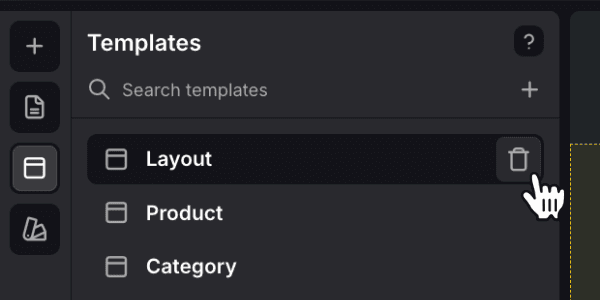 button. Note that you cannot remove templates that are currently assigned to pages. Therefore, you have to unassign the template from all pages before deletion.
Recap
We covered the basics of templates: how to create, edit, assign and delete them.